Scenarios
You had a user which worked fine before now redirection has stopped working.
You are convinced it is not permissions as it has worked before.
You deleted a local version of the profile due to corruption and redirection no longer works
You deleted the network version of the profile due to corruption and redirection no longer works.
You deleted the profile from the machine incorrectly, causing a corruption and temporary profile issues.
You have wiped the profile from the local machine completely, yet still folder redirection does not work.
You have deleted all temporary files.
You have deleted the temporary files from the disk usage are under manage offline files.
There are errors stating that redirection failed, error codes include:
Event ID 502: Failed to Redirect because directory is offline.
Event ID 1085: Windows failed to apply folder redirection settings.
Stuff that can happen
The user logs in but with a temporary profile.
The user logs in successfully and all other preferences applied, but on the server none of the redirected folders have been created in your specified location. Instead they still remain in the profile, which for all intensive purposes seems to of built fine.
The user logs in, the profile is made but the Music, Video and Pictures folders have not made themselves.
The Pictures, Video and Music folders have made themselves but the other profile redirections have not.
Only some redirected folders are made.
New redirected folders I have applied make themselves fine.
I know deep down on any other machine this will work fine, with the exception of this batch/few/one.
The Fix
This comes from a selection of sources, but if you have found this post then you don't need to spend the hour or two bouncing back from the same old fixes that do not seem to work.
Now bare with me, you'll be like, "i've done this", yeh, I know you have, but it can be a combination of incorrect settings on the client, so if we do all these fixes, in the correct order, it won't matter what scenario you have, it will hopefully fix it all.
The only thing I ask, is that if you never had redirection working to begin with, then this is not a fix or guide on how to set them up, I would expect you to know at least the basics of folder redirection. This is a fix when you know that it is setup and it will work correctly and you are certain it is a client side issue.
1. Login the machine with an administrative user.
2. Go to start menu, right click Computer and choose Properties.
3. Choose Advanced System Settings
4. Choose Settings under User Profile
5. Find your problem profile, highlight it and delete.
6. Don't worry about errors or crap you get here.
7. Apply all, get out of this menu and go to start run and choose Regedit
8. Navigate to HKEY_LOCAL_MACHINE\Software\Microsoft\Windows NT\CurrentVersion\ProfileList
9. Find the key that is related to your problem profile, look in the keys on the right to find it.
10. Take a note of the end number of the key and delete the key.
11. Now go to HKEY_LOCAL_MACHINE\Software\Microsoft\Windows NT\CurrentVersion\ProfileGuid
12. Delete the key that references your SID which you just deleted. (hence why I asked you to note the last few numbers), go through each key and find that SID, delete that entire key.
13. Go to: HKEY_LOCAL_MACHINE\SYSTEM\CurrentControlSet\Services\Csc\Parameters
14. If parameters does not exist, create it.
15. Now in the Parameters node create a new registry value with the name FormatDatabase of typeREG_DWORD (i.e DWord 32-bit value)
16. Set the data in this new registry value to 1. (THANKS TO http://offlinefiles.blogspot.co.uk) for this)
17. Close the regedit editor
18. On your server, delete the roaming profile if there is one.
19. On the server, go to run and type gpupdate /force, (why not. eh, we got this far).
19. On your client, go to run and type Gpupdate /force
20. Clear the C:\Windows\Temp Folder
21. Restart your client machine
22. Wait for a connection, ideally use a network cable and for god sake if you just plugged it in, turn the wireless off for 5 seconds then turn it back on to ensure it does use the wire. Don't be a rookie.
23. Login as the troublesome user.
23. Say Thank you if it works, I appreciate it!
Now if this actually has not worked, then there must be a setting somewhere on your server. You have essentially made that client machine complete forget about a certain user. It was as if it was freshly imaged, a true first login.
Good luck!
Showing posts with label GPO Preferences. Show all posts
Showing posts with label GPO Preferences. Show all posts
Tuesday, 8 April 2014


Tuesday, 24 May 2011
Adobe Reader 10 cannot open pdf from UNC path
If you have deployed Adobe Reader 10 and get messages saying that your users cannot open .pdf files from a network location the likely culprit is that protected mode is enabled.
You can turn this mode off using a registry edit as below:
Registry Editing Method
Open notepad and paste the following command, when pasted save as a .reg file.
REG ADD "HKCU\SOFTWARE\Adobe\Acrobat Reader\10.0\Privileged" /v bProtectedMode /t REG_DWORD /d 0 /f
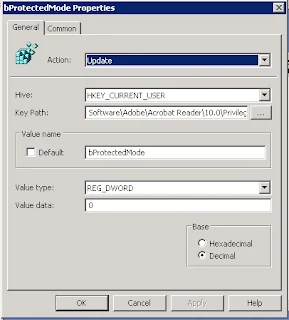
This is how the finished registry entry should look.
You can turn this mode off using a registry edit as below:
Registry Editing Method
Open notepad and paste the following command, when pasted save as a .reg file.
REG ADD "HKCU\SOFTWARE\Adobe\Acrobat Reader\10.0\Privileged" /v bProtectedMode /t REG_DWORD /d 0 /f
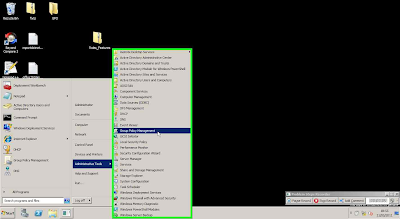
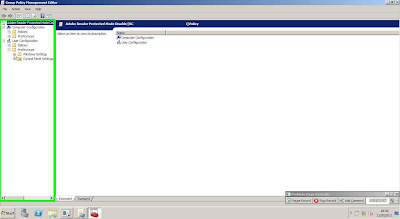
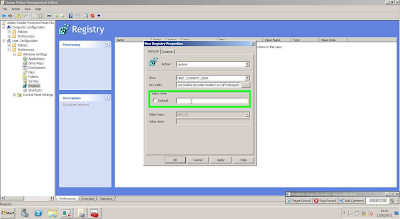
Alternative MethodIf using Server 2008R2 you can set a preference to make a change to the registry for users as belowOpen Group Policy Management from Start > Administrative Tools > Group Policy Management

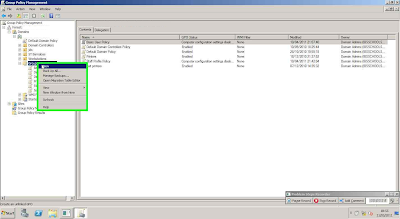
Create a new Group Policy Object
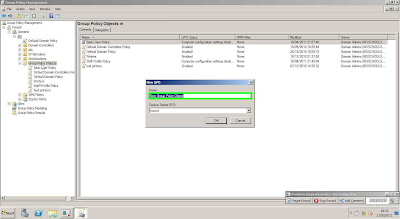
Give the GPO a suitable name

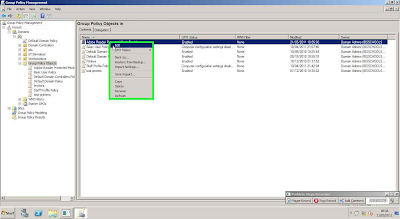
Right click and select edit

Expand the User Preferences menu option

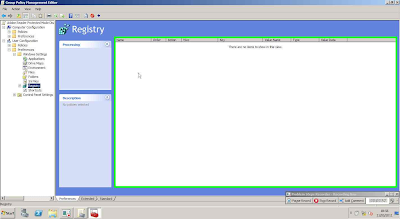
Expand the Windows Settings and select Registry

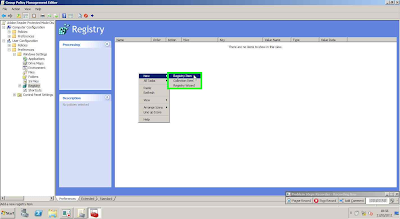
In the blank area in the right hand pane right click and select New > Registry Item

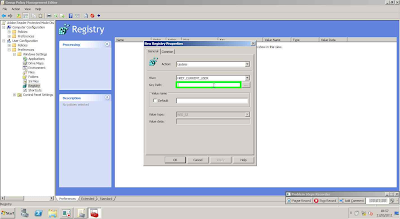
Ensure that the settings are to ‘Update’ the registry key, also check that the selected hive is HKEY_CURRENT_USER.In the Key path enter ‘SOFTWARE\Adobe\Acrobat Reader\10.0\Privileged’

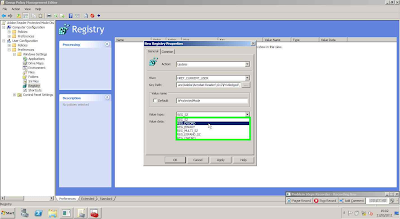
Enter ‘bProtectedMode’ into the Value box

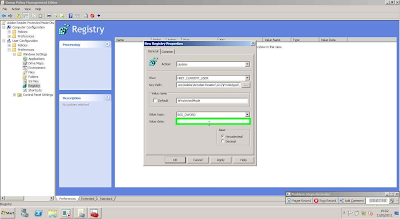
Change the value type to REG_DWORD
In the value box enter ‘0’


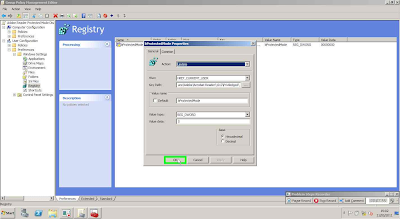
Click OK and you are done.
This is how the finished registry entry should look.

Subscribe to:
Posts (Atom)